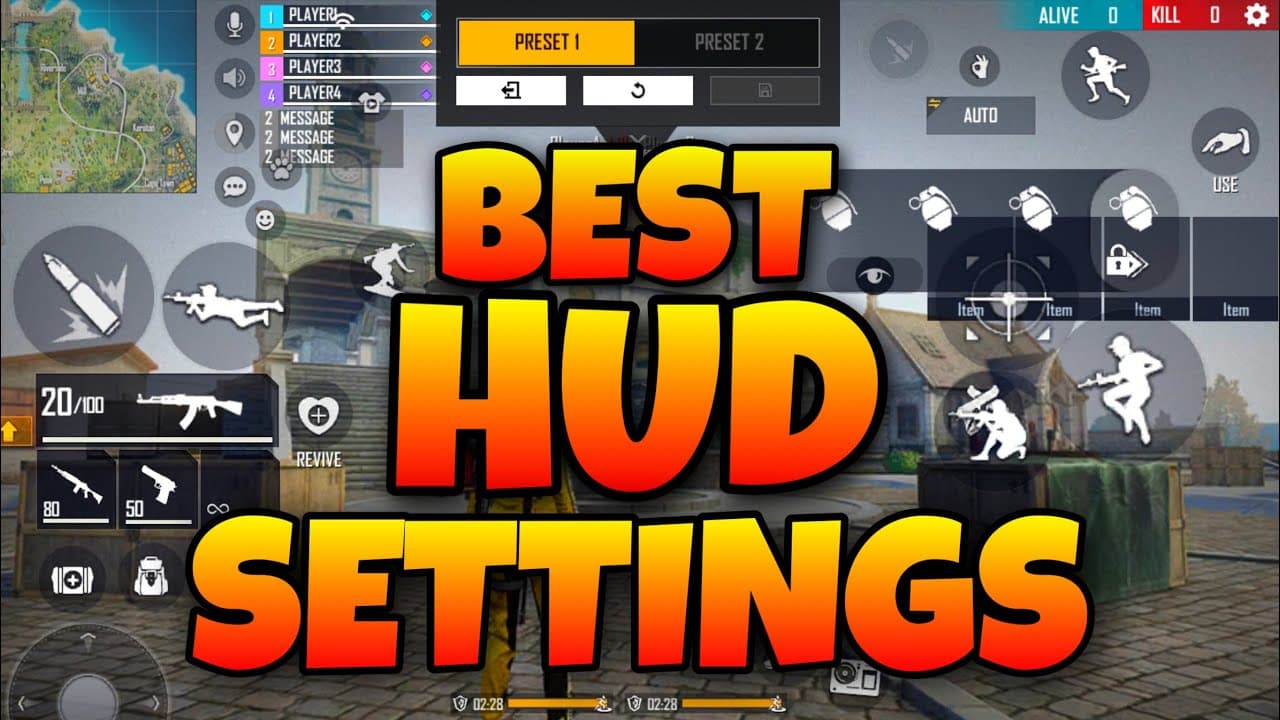
Your custom HUD layout in Free Fire decides how fast you shoot, build gloo walls, and switch weapons under pressure. Default controls work in Bronze. They stop working in Platinum. If you want to climb ranked in OB52, your button placement matters as much as your aim. This guide breaks down exact HUD setups for 2-finger, 3-finger, and 4-finger playstyles, with share codes you can import right now.
#Which Finger Setup Should You Use?
This is the first decision, and it depends on your device, hand size, and how much time you can invest in practice.
| Setup | Best For | Skill Ceiling | Learning Time |
|---|---|---|---|
| 2-Finger (Thumbs) | Beginners, small phones, casual play | Medium | Instant |
| 3-Finger (Hybrid) | Intermediate players, fast gloo walls | High | 1-2 weeks |
| 4-Finger (Claw) | Competitive ranked, Heroic push | Very High | 3-4 weeks |
2-finger is comfortable but forces you to choose between aiming and firing, or moving and building. You cannot crouch-shoot or place a gloo wall while keeping your crosshair on target.
3-finger adds your left index finger, which frees up one action. You can fire with your index while your right thumb aims. This alone cuts your gloo wall deployment time by roughly 30-40% compared to thumbs.
4-finger claw lets you perform nearly every action simultaneously. Crouch, aim, fire, and build all happen at once. Every competitive player in Diamond and above uses 3 or 4 fingers. If you are serious about climbing ranked, start transitioning to at least 3 fingers.
#How to Set Up a 2-Finger Custom HUD Layout
Two-finger layouts need clean screens. Every button you do not actively use should be shrunk or moved to the edges. Here is how to optimize:
- Keep your fire button large. Set the right fire button to 85-100% size. Place it where your right thumb naturally rests without stretching.
- Move the gloo wall button close to your left thumb. Place it just above the joystick, slightly to the right. You need to tap it without lifting your movement thumb far.
- Shrink the scope button. Reduce it to 60-70% and tuck it near the fire button. You will rarely manual-scope in a 2-finger setup.
- Hide weapon switch buttons. Drag gun slots to the bottom edge. Tap to switch only when safe.
- Turn on auto-pickup. With only two fingers, you cannot afford to manually loot mid-fight.
The biggest mistake 2-finger players make is cluttering the screen. If a button does not help you in a gunfight, minimize it.

#Best 3-Finger Custom HUD Layout for Free Fire
The 3-finger setup is the sweet spot for most mobile players. Your left index finger sits at the top-left corner of the screen and handles one critical function: firing or building.
Finger assignments:
- Left thumb: Joystick movement, sprint, grenades, gloo wall
- Left index finger: Left fire button, crouch, or weapon switch
- Right thumb: Aiming (drag), right fire button, scope, reload, medkit
Step-by-step placement:
- Move the left fire button to the top-left corner. Size it at 80-90%. This is your index finger's primary button.
- Place the crouch button directly below the left fire button, also in the top-left zone. Your index finger handles both, tapping down to crouch-fire.
- Keep the gloo wall button near the joystick on the left side. Your left thumb deploys walls without interrupting your aim.
- Right side stays clean: fire button, scope, reload, and medkit clustered for your right thumb.
- Character ability button goes near the right fire button. Characters like Alok need quick ability activation during pushes, so keep it accessible.
The reason 3-finger dominates mid-rank play is the crouch-fire combo. You can crouch with your left index and fire with your right thumb simultaneously. In a 1v1 at mid-range, the player who crouch-fires first usually wins because the headshot hitbox drops.
#Best 4-Finger Claw Custom HUD Layout
Four-finger claw is the pro standard. Both index fingers rest on the top corners of your phone while your thumbs handle movement and aiming below.
Finger assignments:
| Finger | Controls |
|---|---|
| Left thumb | Joystick, sprint, grenades, gloo wall |
| Left index | Left fire button, character ability |
| Right thumb | Aim drag, weapon switch, reload, medkit, prone |
| Right index | Jump, crouch, scope |
Step-by-step placement:
- Left fire button at top-left, 75-85% size. Your left index taps this to fire while your right thumb aims freely.
- Character ability button directly below the left fire button, within index finger reach.
- Jump button at top-right corner, 70-80% size. Your right index handles this.
- Crouch button just below the jump button on the right side. Right index taps between jump and crouch.
- Scope button near the right index zone, slightly lower.
- Gloo wall stays near the left joystick for thumb access.
- Right fire button remains at default position for your right thumb as a backup fire option.
The 4-finger advantage is jump-shooting. You can jump with your right index, aim with your right thumb, and fire with your left index all at the same time. In close-range M1887 fights, this makes you extremely hard to hit. Pair this with Hayato's Bushido passive for increased armor penetration when low on HP, and you win shotgun duels consistently.

#OB52 HUD Share Codes (Ready to Import)
OB52 introduced a HUD Recommendation System in Settings > HUD. You can now browse pro player layouts or paste share codes directly. Codes can include both HUD layout and sensitivity settings, and you choose whether to sync the linked sensitivity.
How to import a HUD code:
- Open Free Fire and go to Settings.
- Navigate to HUD, then find the HUD Recommendation System.
- Tap "Use Share Code" at the bottom-left of the screen.
- Paste any code below and tap Apply.
- Choose whether to sync sensitivity settings or keep your current ones.
2-Finger codes:
#FFHUDT603jiMfWfVPo7e0(aggressive, close-range focus)#FFHUDT6O3jlm5zV9Po7eP(balanced, ranked play)
3-Finger codes:
#FFHUDT6O3jRoP1WVPo7eN(mid/long range control)#FFHUDT7O3jjGFSltPo7eM(all-rounder style)
4-Finger codes:
#FFHUDT6O3jjGFRltPo7eO(high actions-per-second claw)#FFHUDT6O3j4OudPJPo7eO(aggressive push style)
Do not blindly sync sensitivity when importing. If your current sensitivity settings already feel comfortable, keep them and only apply the button layout.
#5 Rules for Custom HUD Optimization
These apply regardless of how many fingers you use:
- Create a no-mistap zone. Leave clear space around your fire button, jump button, and crouch button. Accidental taps in a fight will cost you kills.
- Lower opacity on non-critical buttons. Bag, map, and settings buttons can go to 30-40% opacity. They block your screen in fights.
- Match button size to finger size. If you have large thumbs, increase fire button size. If buttons feel cramped on a small phone (5.5 inches or under), reduce all button sizes by 10% and spread them further apart.
- Lock your 5 core buttons first. Joystick, fire, scope, jump, and crouch. Place these perfectly before touching anything else. Every other button works around them.
- Never change your HUD right before ranked. Any layout change needs at least 10 minutes in Training Mode and 3-5 Clash Squad matches before you bring it into Clash Squad Ranked or BR Ranked.
#How to Transition from 2 Fingers to 3 or 4
Switching finger setups feels terrible for the first few days. Your muscle memory fights you, and your performance drops before it improves. Here is how to make the transition faster:
- Start in Training Mode. Spend 10-12 minutes daily just practicing basic movements with the new layout. Focus on crouch-firing and gloo wall placement.
- Play Lone Wolf first. Fast respawns let you practice combat without waiting. Play 5-10 Lone Wolf matches before touching any other mode.
- Add one finger at a time. Going from 2 to 4 fingers at once is too jarring. Move to 3 fingers first. Once that feels natural (typically 1-2 weeks), add the fourth.
- Do not switch back mid-session. If a match goes badly, resist the urge to revert. Reverting resets your muscle memory progress.
- Reduce button sizes gradually. Start with larger buttons (90-100%) for your new index finger, then shrink them to 70-80% over 2-3 days as your accuracy improves.
Most players see clear improvement within 7-10 days of consistent practice. The discomfort is temporary. The speed advantage is permanent.
#FAQ
What is the best finger setup for Free Fire on a small phone?
Three fingers. On phones under 6 inches, 4-finger claw cramps your hands and causes mistaps. A well-optimized 3-finger layout gives you 80% of the claw advantage without the physical discomfort.
Can I use HUD share codes on both Android and iOS?
Yes. HUD share codes work across both platforms in OB52. The import process is identical: Settings > HUD > Use Share Code. Button positions may need minor adjustments depending on screen aspect ratio.
Should I copy a pro player's exact HUD layout?
Use it as a starting point, not a final setup. Pro players have different hand sizes, phone models, and grip styles. Import the code, then adjust button positions by a few millimeters until every button sits comfortably under your fingers without stretching.
How long does it take to get used to a new HUD?
Expect 3-5 days of worse performance, then gradual improvement. Full muscle memory adaptation takes 10-14 days of daily play. Do not change your layout again during this period.